
Ford Technology Guide
Ford Technology Guide
Your go-to resource for understanding the innovative features that make driving a Ford smarter, safer, and more connected. This page provides an overview of Ford Rewards, The Ford App, and Ford Digital Experience. Whether you're exploring a new Ford model or looking to get the most out of your current vehicle, our technology guide helps you discover how Ford engineering enhances convenience, performance, and confidence on every drive.
Ford Technology Guide
Connect
Connect at no cost with an email to activate your account.
Build
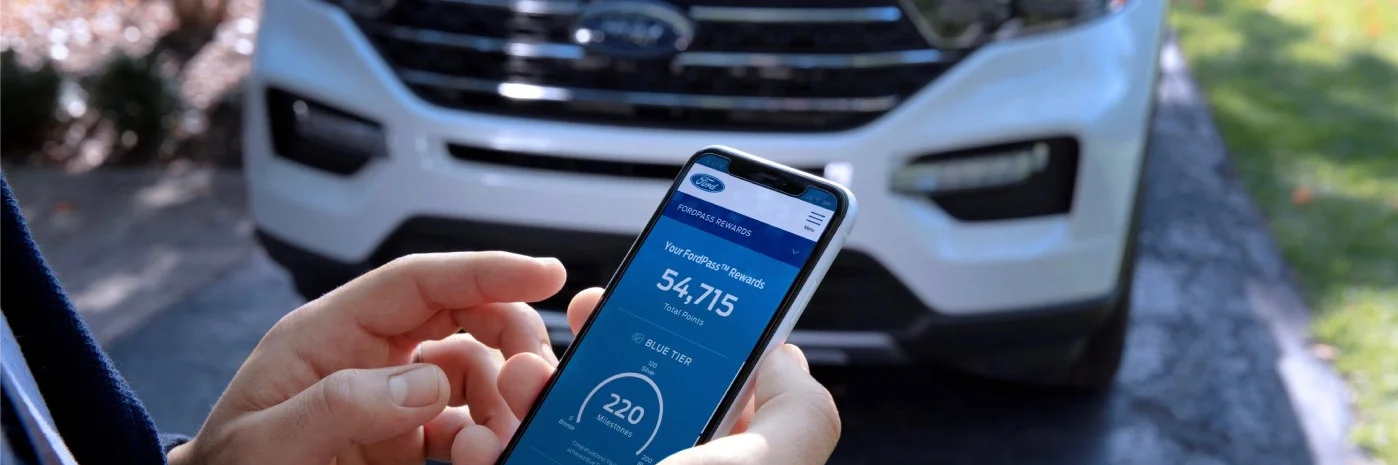
Build up points with all eligible Ford purchases and redeem them for rewards.
Elevate
Elevate through the Tiers through activities and unlock more member benefits.
Your points. Your rewards. Your choice.
Find all Ford Rewards Here: https://login.ford.com
Ford Rewards FAQ according to Ford
How do I join Ford Rewards?
All you need is an email to create your Ford Rewards account. There are two ways to join:
- Create an account through FordRewards.com and/or download the Ford app for iPhone® or Android™ mobile phones
- Add your name and address to your profile
- Activate your account
You can activate your Ford Rewards account online or through your Ford app:
- From Ford.com: Click the Person icon at the top right of the page, then select “Ford Rewards? from the drop-down list
- From your Ford app: Select “Account,? then select “Rewards?
Once you select “Rewards,? you will see a prompt to activate your account and start earning Points. If you do not see a prompt, your Ford Rewards account is active and you're able to earn and redeem Points.*
If you have a Ford Rewards Visa Signature® Credit Card and do not yet have a Ford Rewards account, sign up for an account at FordRewards.com using the same name and email address you use for your Ford Rewards Visa to automatically link your accounts.
*Must have an activated Ford Rewards account (formerly known as FordPass® Rewards) within 60 days of qualifying activity to receive Ford Rewards Points. Points are not redeemable for cash and have no monetary value. Point earning and redemption values are approximate and vary by products and services redeemed. See Ford Rewards Program Terms at FordRewards.com regarding expiration, redemption, forfeiture, and other limitations on Ford Rewards Points.
How do I activate my Ford Rewards account?
Once you have created your account, sign in through FordRewards.com. If you still need to activate your account, you will see a prompt inviting you to click to activate your account to start earning Points. If you do not see a prompt, your account is already activated.
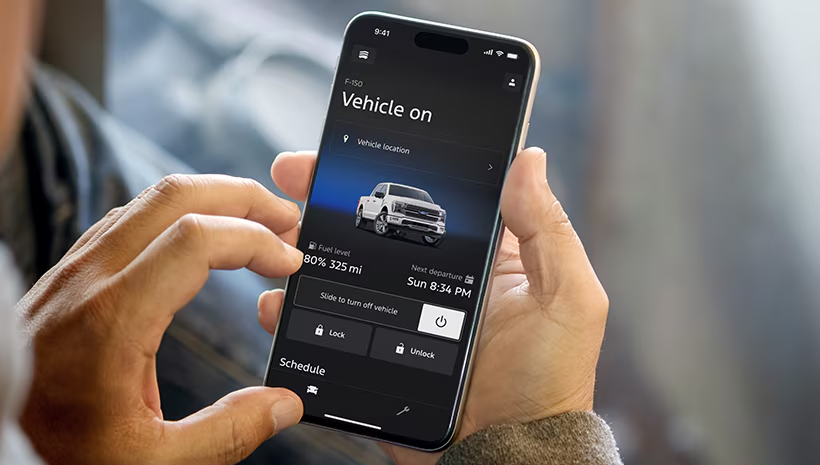
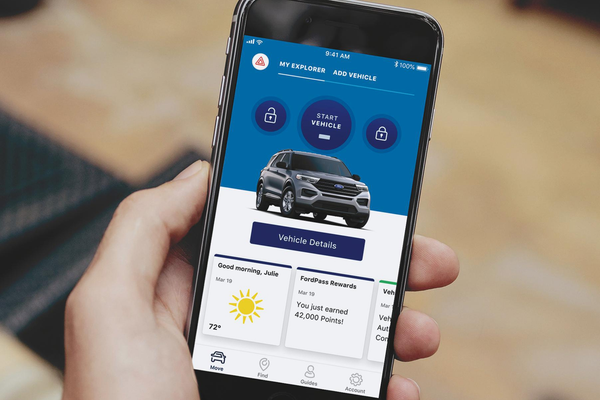
Remote Features
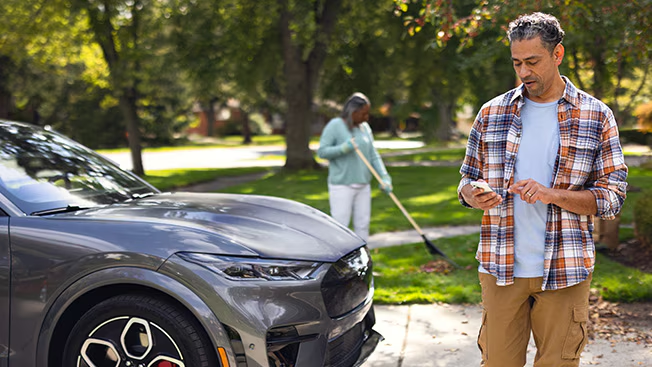
Remote start and lock/unlock your Ford right from your phone.
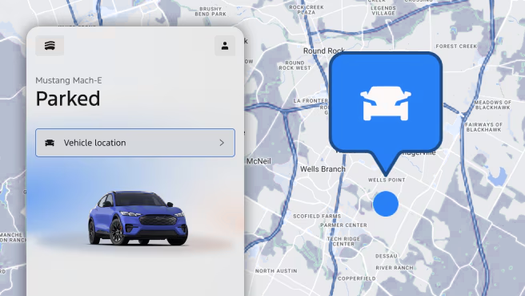
GPS
Find your Ford ride anytime with GPS tracking.
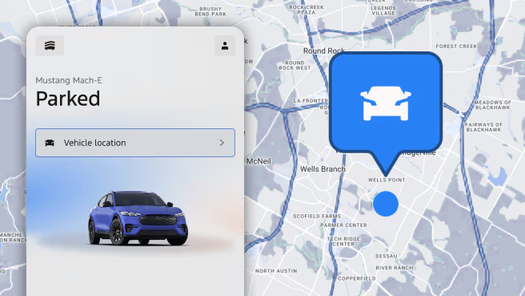
Vehicle Management
Track fuel levels and tire pressure from your phone, along with using your phone as a key.
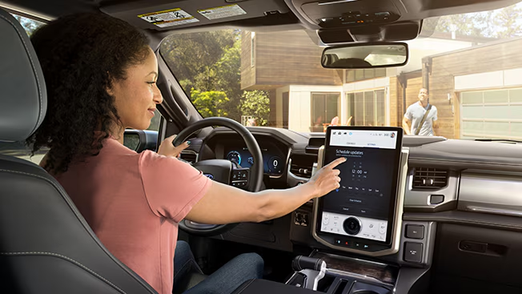
Over-The-Air Software Updates
Schedule vehicle updates for your Ford directly from the Ford App.
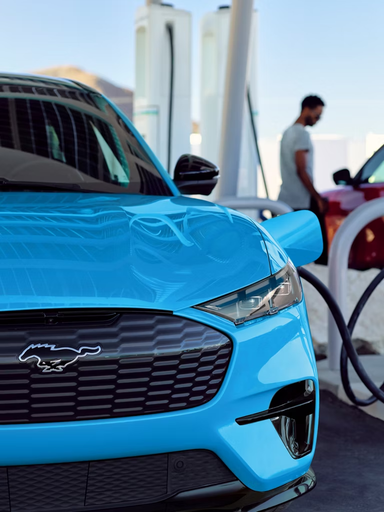
Electric Vehicle Features
Check your charge levels, precondition your Ford, and pay for public charging all in the app.
Ford App FAQ according to Ford
What is the Ford App?
Upgrade your Ford ownership with the Ford app.b The app allows you access to features any time on your phone at no extra cost like remote start, lock and unlock, GPS tracking, fuel and oil stats, and much more.
You can also receive important alerts such as recall notifications, view your vehicle service history, access Ford Rewards, access Roadside Assistance, schedule your next service appointment with your preferred Ford Dealer, access Ford Credit, and more. If you already have a Ford Account, you can log in to the Ford app using your existing Ford account username and password.
How do I activate and set up the Ford App?
You can download the Ford app in the App Store® for iOS® devices, or Google Play™ store for Android™ devices. Then create an account or log in using your existing Ford account credentials (username and password). After that, you can optimize your Ford app experience by adding a vehicle to your account.
After download, you can create a new account in the Ford app by selecting your country, choosing Next, and then selecting Create an Account. Follow the prompts from there to finish setting up your new Ford app account.
Ford Technology Guide
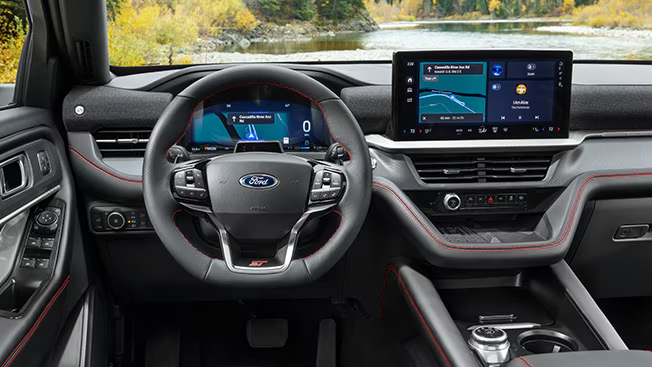
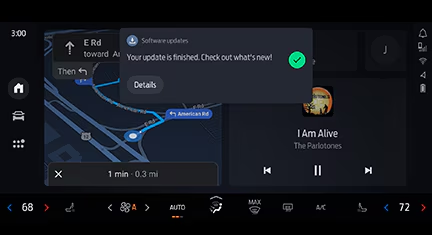
Content Where it Counts
A customizable experience that provides content so your eyes can stay on the road.
Connected Apps Directly
Download apps directly to your vehicle and use them on your in-vehicle screen.
Custom Experience Management
Tailor your system to match your drive experience needs.
Ford Digital Experience FAQ according to Ford
How does the Ford Digital Experience technology compare to SYNC?
The Ford Digital Experience is a new spin on our in-vehicle technology. We’ve updated the cluster and in-dash screen as well as integrated Google apps and services like Google Assistant, Google Maps and more on Google Play. It also offers 5G connectivity.
Both the Ford Digital Experience and SYNC® have Alexa Built-in integration and Ford Premium Connectivity available, as well as integration with your phone and many other shared features.
And the integration of Google apps and services into our new experience doesn’t mean you have to say goodbye to Apple CarPlay or Android Auto. You have the power to choose — these options are available and can work together seamlessly. (For example, you can talk to Google Assistant while Apple CarPlay is active.)
Which apps are compatible with the Ford Digital Experience?
The following apps are embedded in the Ford Digital Experience:
- Google Assistant
- Google Maps
- Google Play
- Phone
- FM Radio
- AM Radio
- SiriusXM
- Bluetooth Audio
- Messages
- Apple CarPlay compatibility
- Android Auto compatibility
- Alexa
- Towing
- Wi-Fi Hotspot
- Digital Owner’s Manual
- Software Updates
- Upfit Controls
- Settings
- Games
- USB Audio
- YouTube
You can also add additional apps through Google Play. Updates on Google Play will occur automatically such as the addition of new apps. Apps that you have downloaded on Google Play will also be updated automatically when updates are available.
Note: Updates to the Play Store and downloaded apps will only happen if the vehicle is connected to Ford Premium Connectivity or Wi-Fi.
Embedded apps cannot be deleted but some can be disabled. If the app is disabled, it will no longer show up on the App Drawer, and it will not function. To use the app again, you would enable it the same way it was disabled. This can be done in the Apps section of the settings menu.